How to Use the GPT Image 2 Generator
Using the GPT Image 2 generator successfully starts with a structured prompt. Instead of a few vague words, provide specific details about the subject, lighting, composition, camera angle, and mood. If you need inspiration or proven formulas, browse through our popular GPT Image 2 prompt templates.
Best Practices for Better Results
When working with photorealistic images, be sure to specify lighting (like "cinematic lighting," "golden hour," or "neon rim light") and medium (such as "35mm film photography," "macro lens," or "4K detailed render"). For UI mockups or design concepts, describe the color palette, layout structure, and design aesthetic (e.g., "minimalist," "glassmorphism," or "clean modern corporate UI").
Mastering Text Rendering and UI Mockups
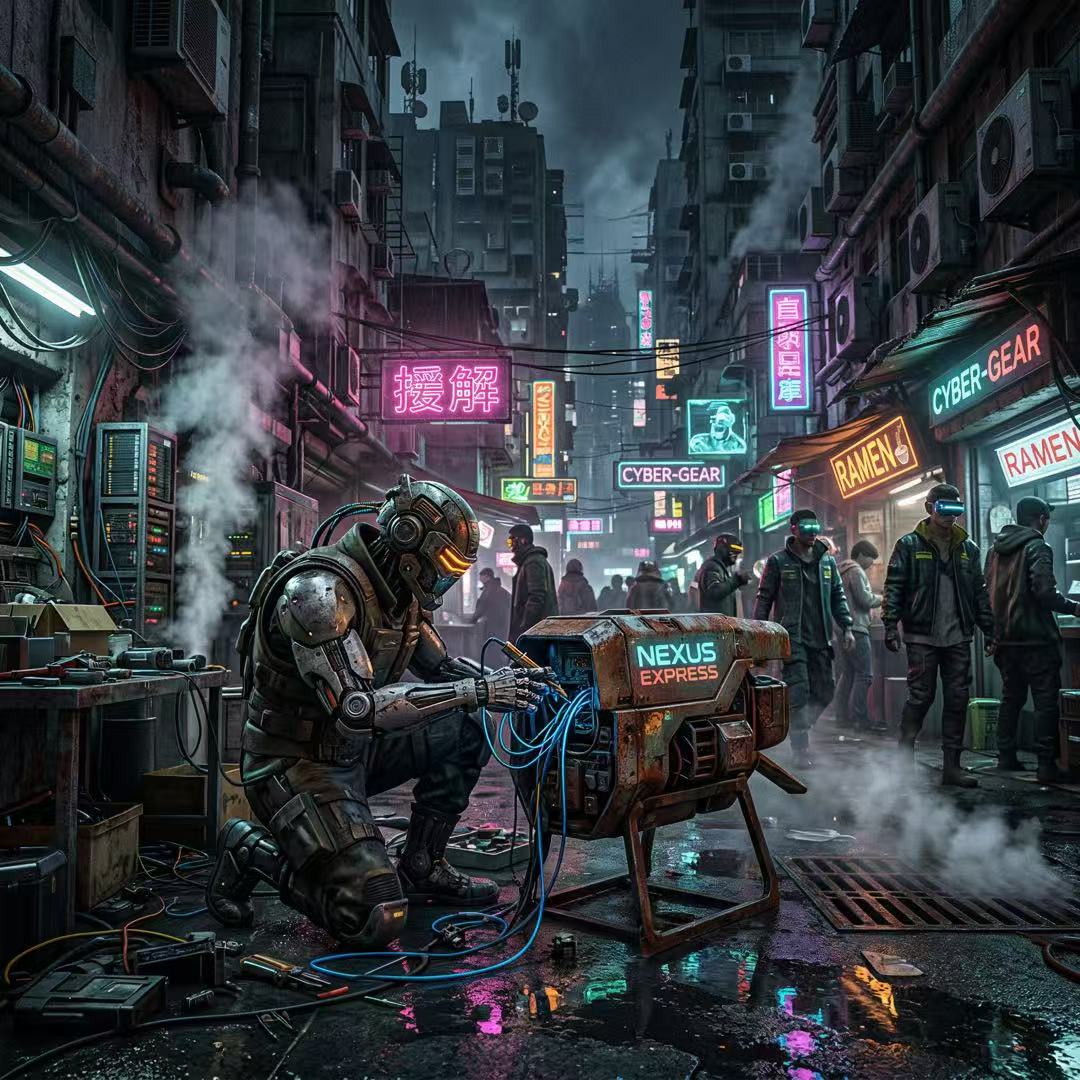
One of the major strengths of this system is its capability for highly accurate text rendering. When you need text to appear on signs, t-shirts, or app interfaces, wrap the exact phrase in quotes in your prompt (e.g., A neon sign reading "Open Late"). Consistency and alignment work best when the background is uncluttered. For more advanced tutorials on typography and layouts, explore our guides and workflow tutorials.
Frequently Asked Questions
Can I use the images commercially?
Yes, depending on your selected plan. We offer subscriptions that provide full commercial rights. Please review the pricing and plans page for specific credit allowances and licensing details.
How do reference images work?
You can upload a reference image directly into the generator. The AI will blend your image's composition or style with your text prompt to maintain consistency across generation projects.